

Use the relevant “Add to Wallet” button in the welcome email sent to Employees and Registered Visitors to add a QR code to your Wallet App for easy sign ins and outs.

Setup
1. Open the welcome email on your phone (subject: Welcome to <<Organisation Name>>)
2. Tap the relevant Wallet button – Apple Wallet or Add to Google Wallet (Android).
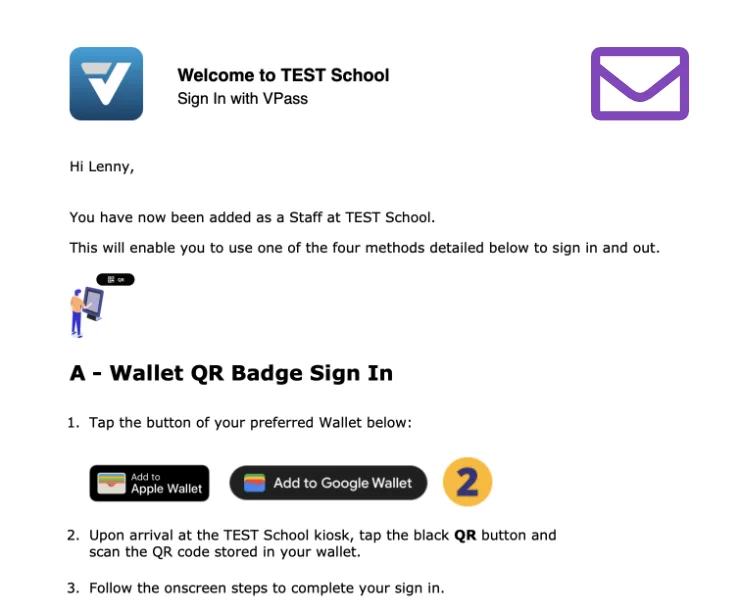
3. Follow the onscreen steps to add it for iPhone & Android device:
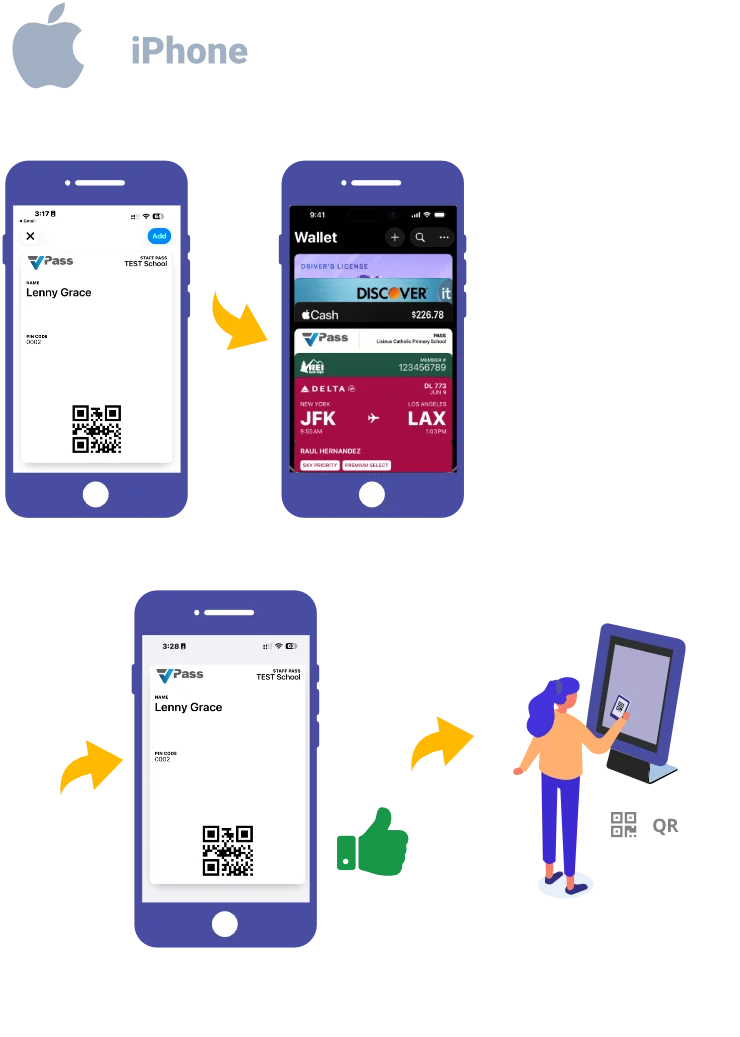
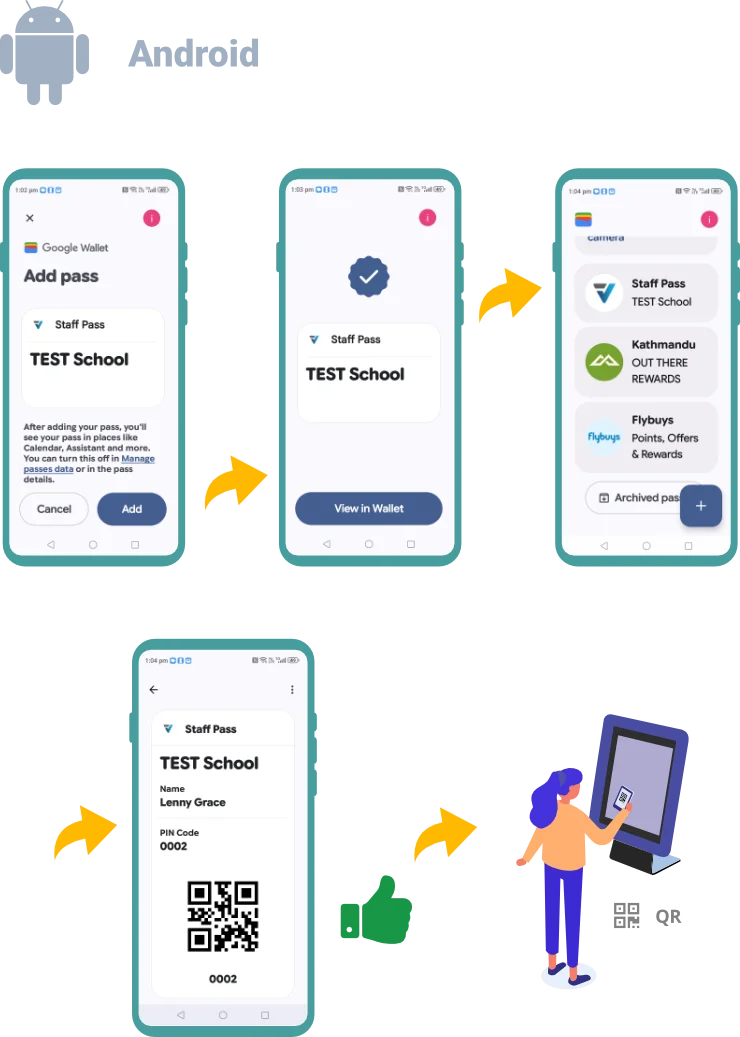
Signing In
4. Open your Digital Wallet App on your phone and select the option for “VPass”.
5. At the VPass Kiosk, select the option for “QR”.
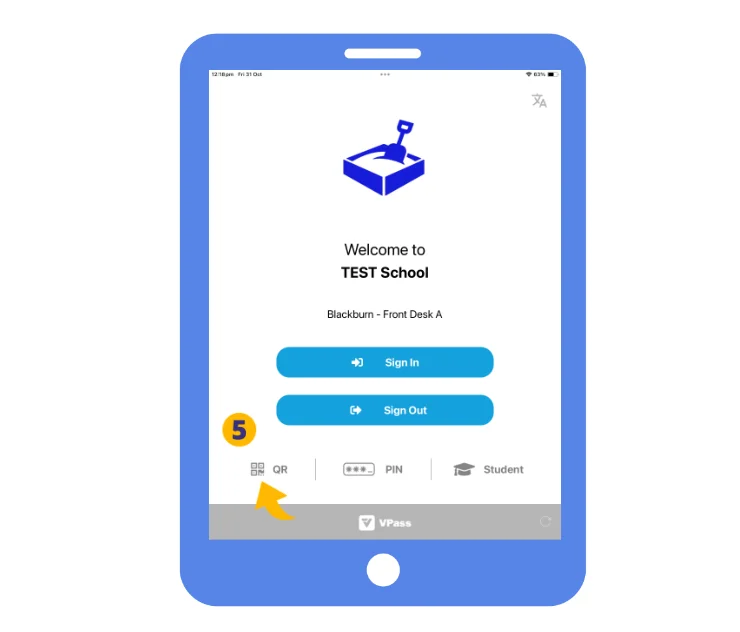
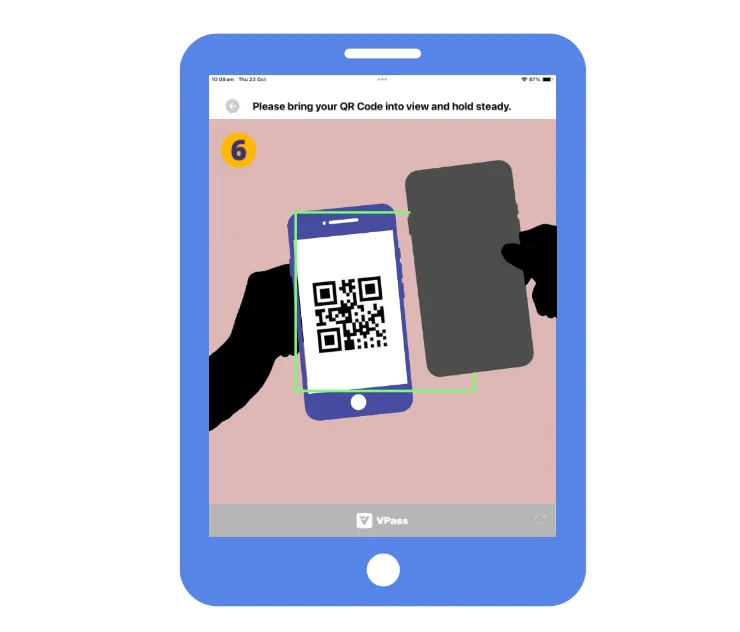
6. A scan window will come up… scan your phone wallet QR code.
7. Most likely there will be no Form fields to fill out and your sign in will be complete.
Signing Out
8. Simply repeat steps 4-7.
V3-114