

Overview
The WWCC/VIT Card Live Check is not a Form Element placed on your sign in Forms. Rather, it is a preliminary process that is undertaken prior to reaching the sign in Form proper.
Setup
Configuration mostly takes place at the Visitor Type level. To get started:
1. Go to your Admin Setup page (cog icon).
2. Select Visitor Types.
3. Edit the preferred Visitor Type… for example “Visitor”.
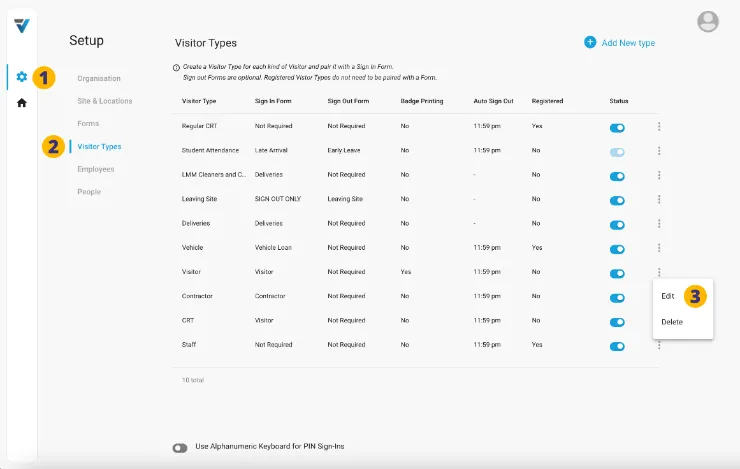
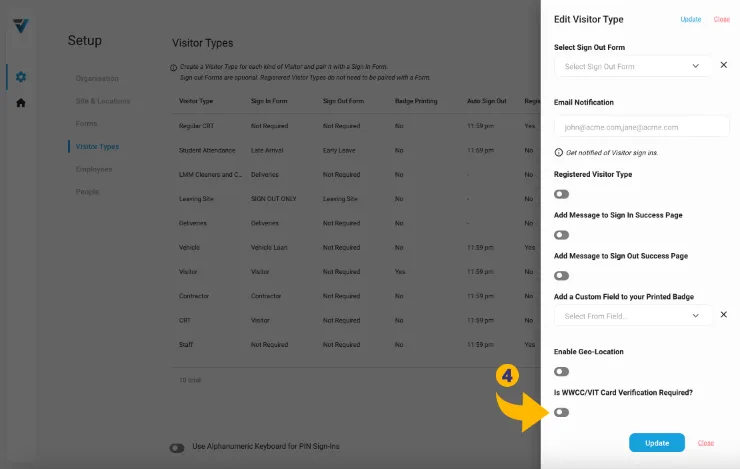
4. Scroll to near the bottom of the sidebar and toggle on the WWCC/VIT Card Verification feature.
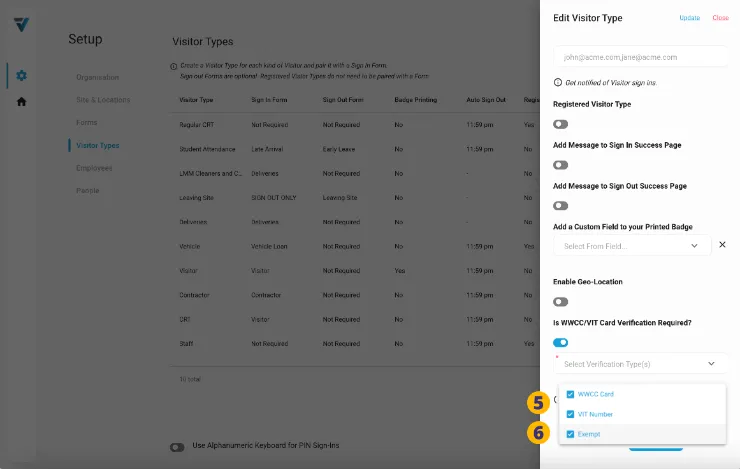
5. Define the scope. Select whether you would like to check the validity of either WWCC or VIT cards …or both.
6. There is also the option for those exempt from having a WWCC or VIT card to give an exemption reason. If you wish to allow this, check Exempt.
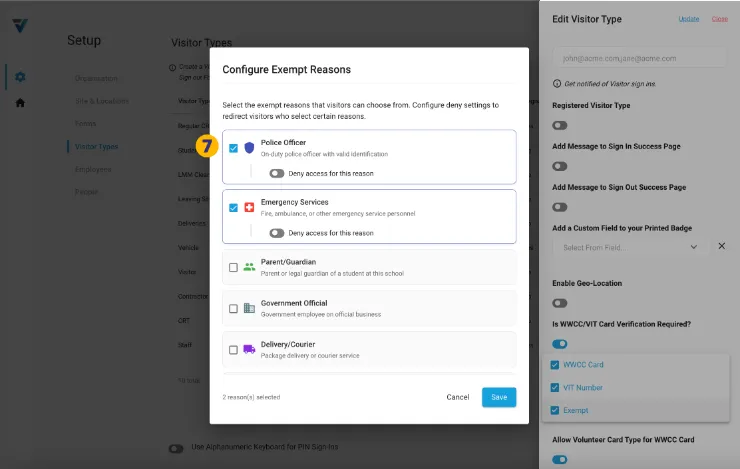
Upon checking Exempt… the Configure Exempt Reasons window will come up. This allows you to set your exemption reasons. You may use the presets by checking those relevant (7)…
… or you may scroll to the bottom of the window to and define your own Custom Exemption Reasons (8). Once defined (eg: “MACS Employee”), click the Add button on the right hand side to Add it to the list (9).
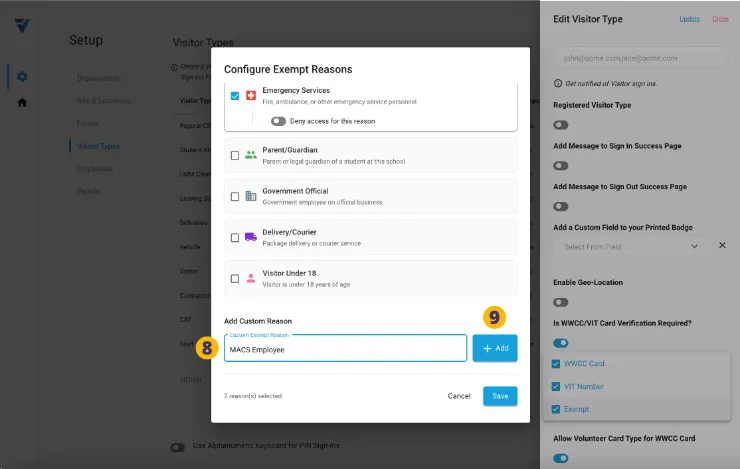
10. Another aspect of configuring each of your Exemption Reasons is to elect whether, when selected by a Visitor, a Deny Sign In takes place.
What is a Deny Sign In?
The Visitor is blocked from signing in and a message appears on the Kiosk screen… something like this:
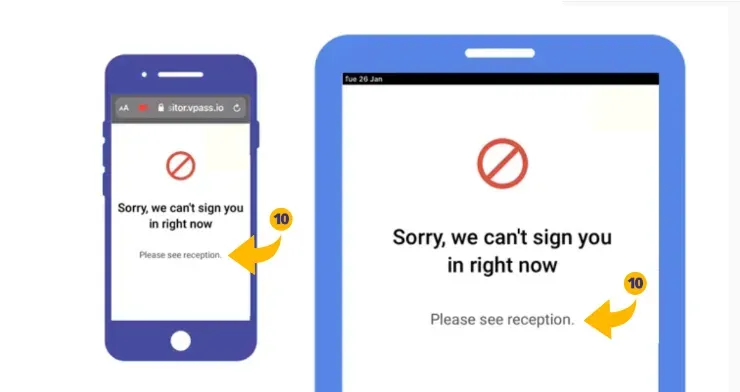
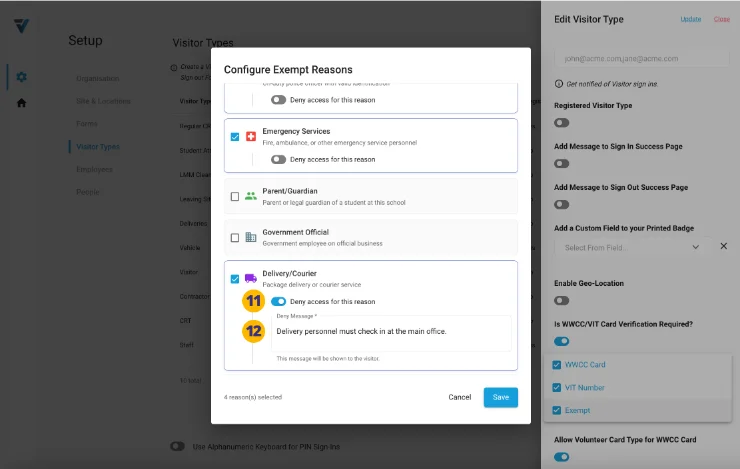
To enable this in each of the Reasons:
11. Toggle on the Deny access for this reason option.
12. Write a brief message explaining to the visitor why they can’t sign in using this exemption reason.
13. Once you have completed configuring your exemption reasons, click Save.
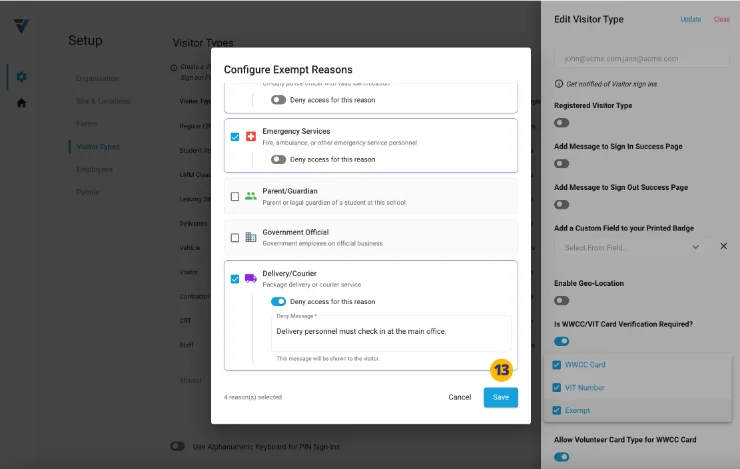
14. A count of your Configure Exempt Reasons are listed in the button eg: (4 selected).
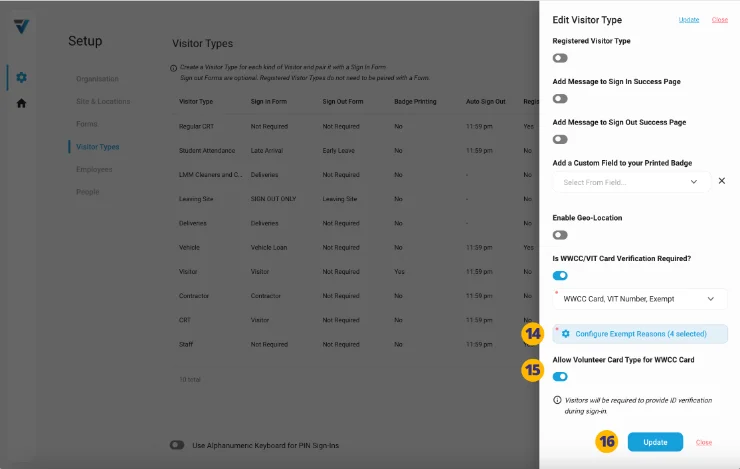
By default VPass will check both the “Employee” and “Volunteer” WWCC card types. However, if you wish to disallow holders of “Volunteer” cards, toggle this switch off (15).

16. To complete the configuration, click Update
.
Receive Email Alerts For Invalid Card Entries
If the entered card details are found to be invalid, a sign in is not possible. However the details of this sign in attempt can be sent to a nominated email address(es).
To set this up…
17. Go to the admin cog icon and select Sites & Locations (18).
19. Use the three dots menu to select Edit.
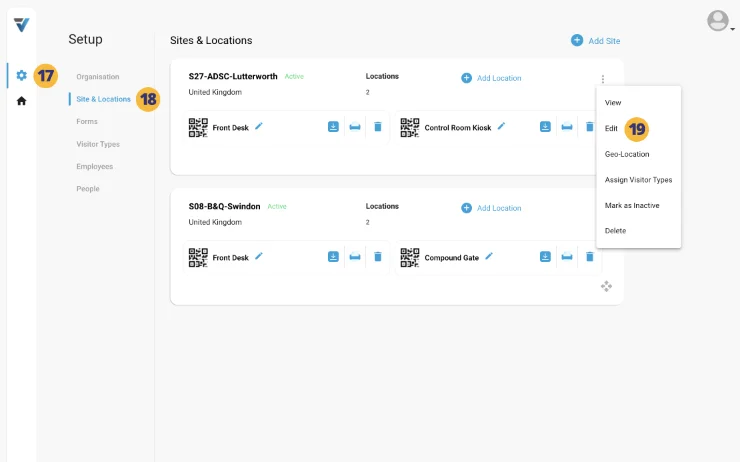
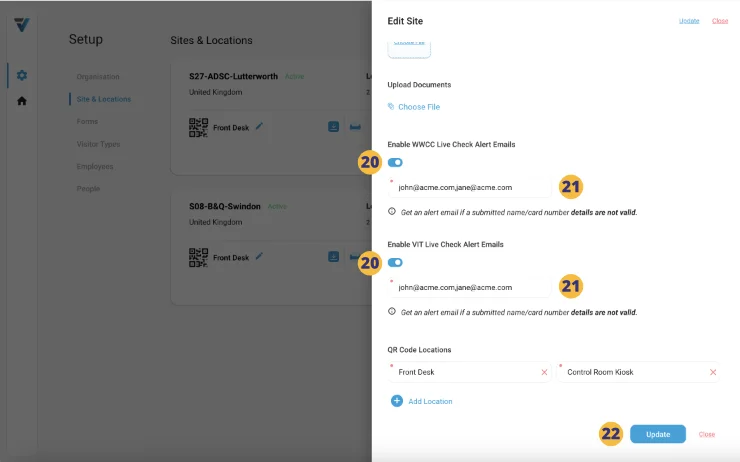
A sidebar will come up. Scroll down to near the bottom.
20. Toggle on either or both the Enable Live Check Alert Email switches.
21. Enter an email address or multiple, comma separated email addresses (no spaces).
22. Update the changes.
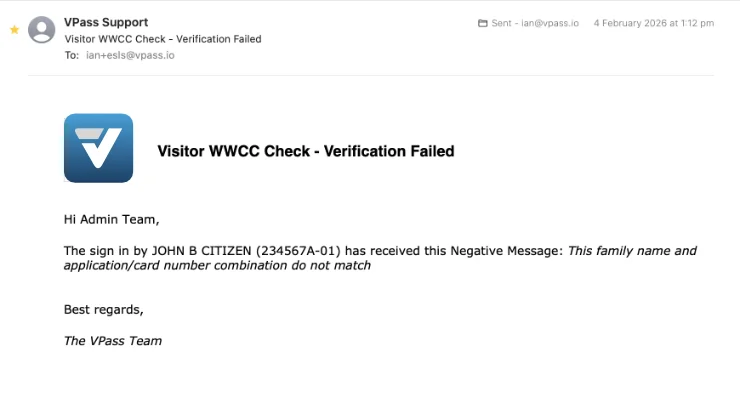
The Alert Email looks something like this:
This completes the setup of the WWCC/VIT Card Verification feature.
How It Works Flowchart
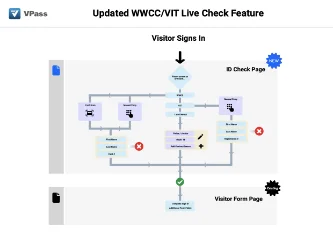
Click here to download.
V3-116