

You may pre-register visitors to use the VPass In Visitor App sign in method.
To see the procedure for doing a bulk upload, click here.
In order to create a single Registered Visitor record for a VPass In App – Phone Sign In…
1. Go to your Admin Setup page (cog icon).
2. Select People > Registered Visitors.
3. On the right hand side, select Add Person.

A sidebar will appear on the right hand side.
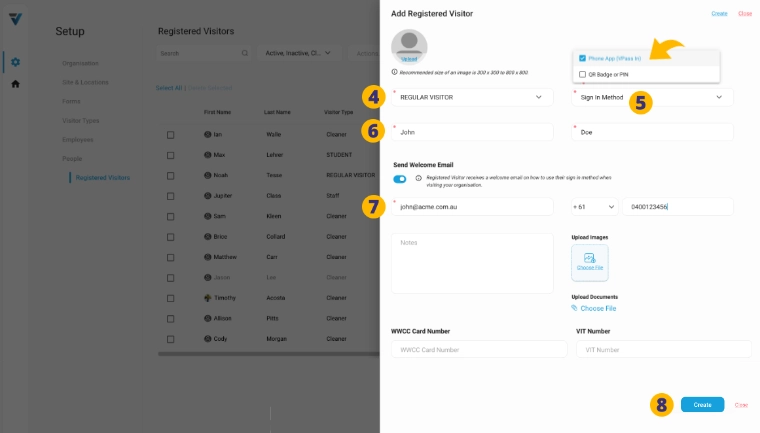
4. Set your Registered Visitor Type to one of the ones you created in the Visitor Type page. If nothing is listed, create a Registered Visitor Type by referring to this help article.
5. Set Sign In Method to Phone App (VPass In).
6. Enter the person’s First Name and Last Name.
7. Enter a valid email and mobile phone number.
8. Click Create.
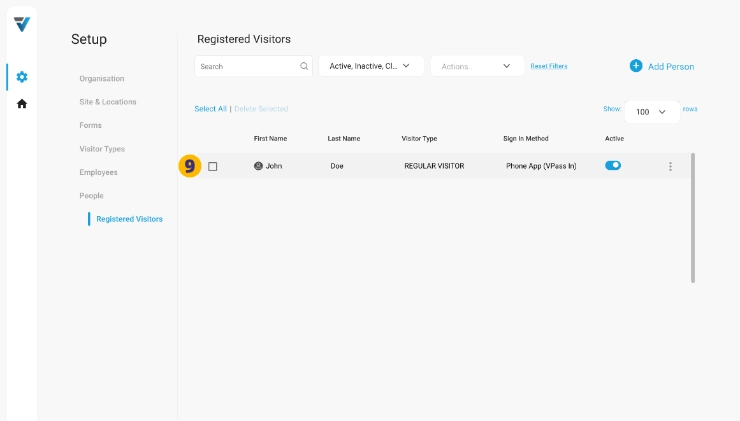
9. The record is listed on the Registered Visitors page.
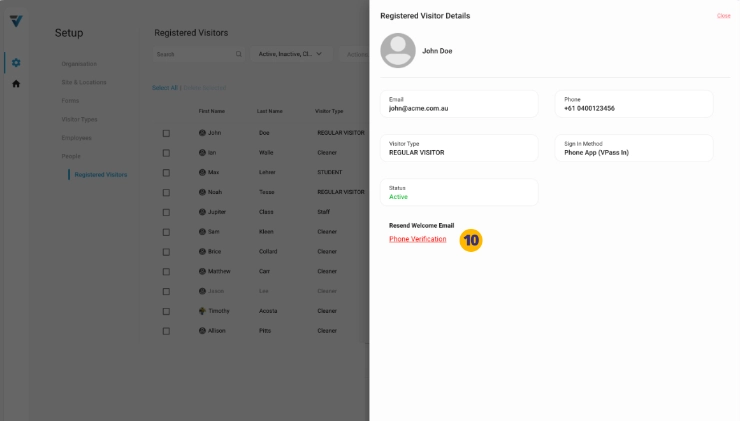
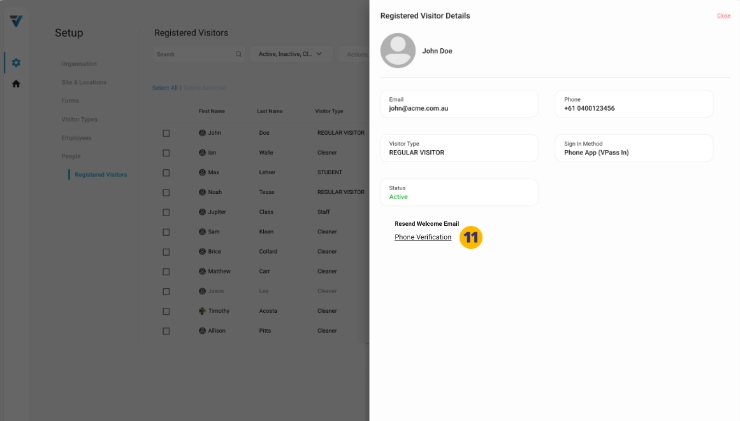
To see whether a Phone App (VPass In) Registered Visitor record has followed the steps in their welcome email and created a Profile, you may click on the listing.
In the sidebar that comes up, if the “Phone Verification” text is in red – they have not (10):
…and if they have verified it is black (11):
12. NB: You may also use the dropdown menu (at the top right of the list page) to filter the list by Sign In Method.
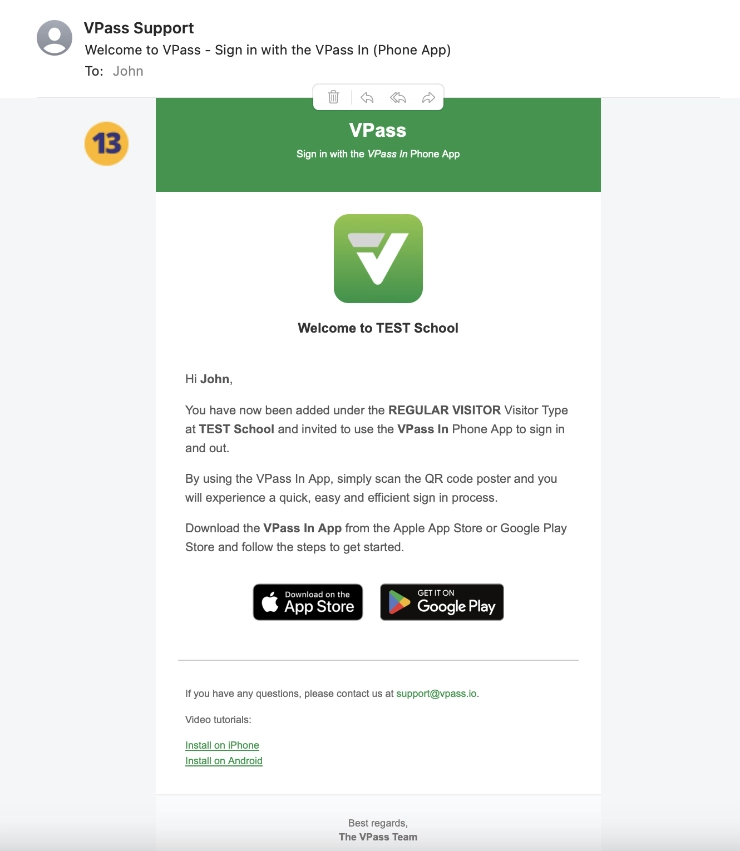
The welcome email (13) instructs the Registered Visitor to download the VPass In App, create a profile …and do their first sign in.
Bulk Upload of Registered Visitors
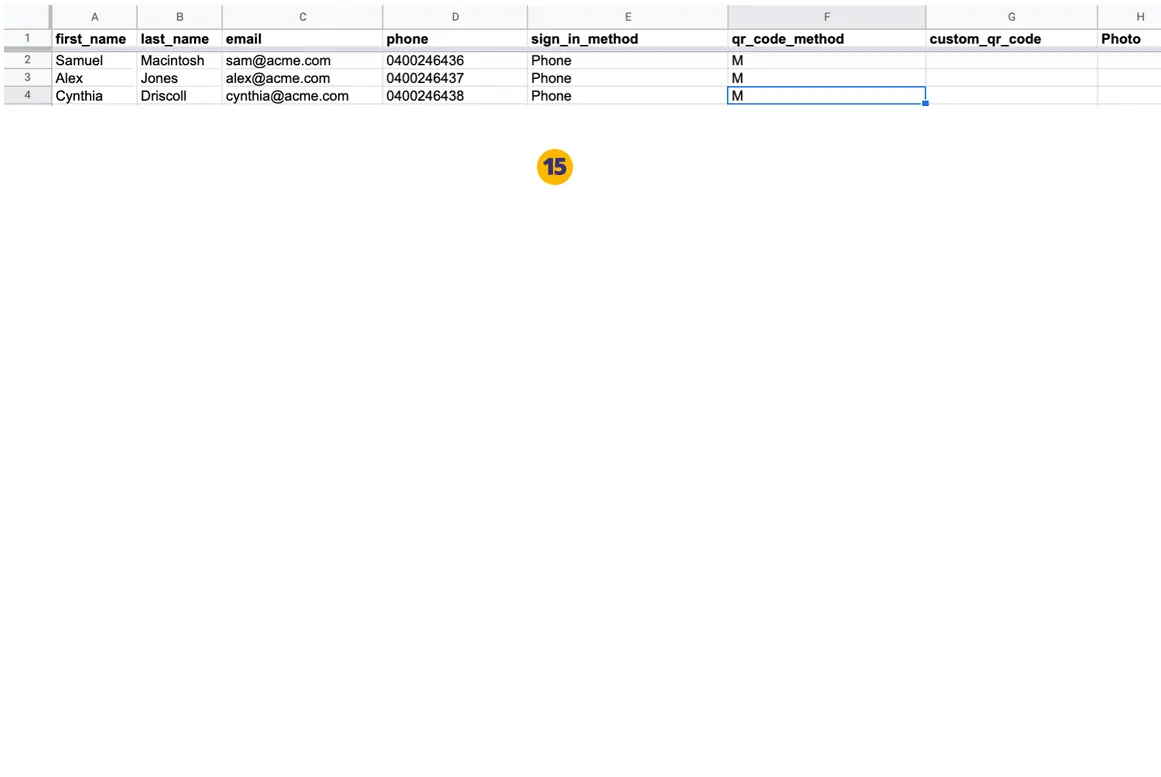
14. Please use the .xlsx file here as a starting template.
15. Add records using the following columns:
• first_name (required)
• last_name (required)
• email (required)
• phone (required)
• sign_in_method – enter Phone (case sensitive)
• qr_code_method – enter “M” (uppercase)
• custom_qr_code – leave blank.
• Photo (optional) – enter a URL.
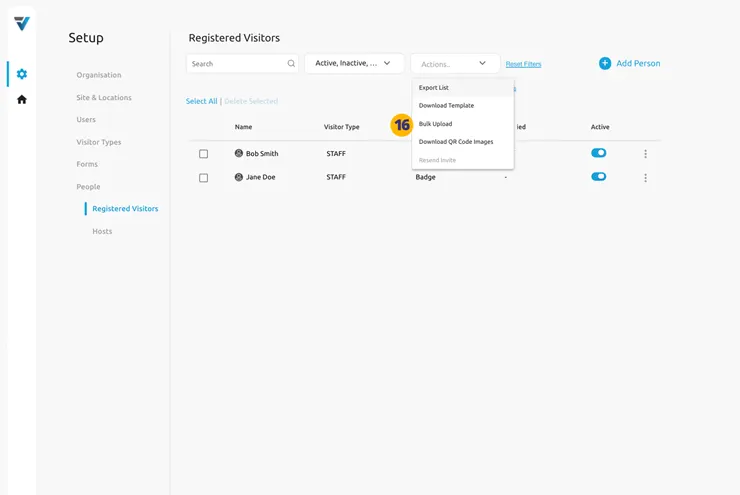
Once your .xlsx file has been prepared, upload it by going to Actions > Bulk Upload (16).
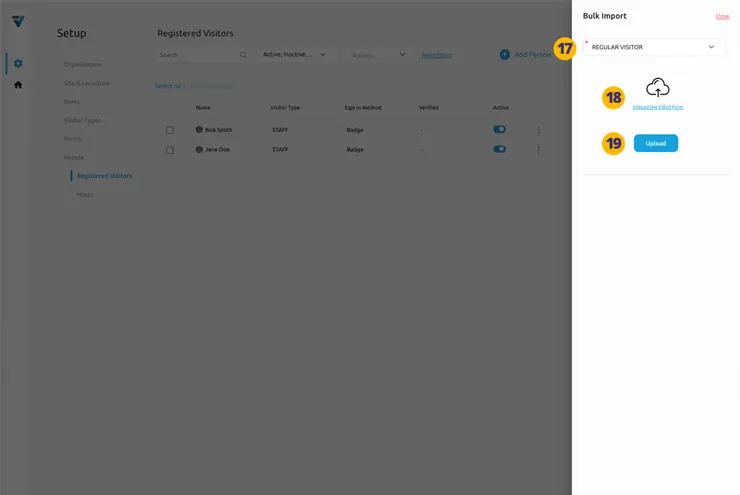
17. Select your Visitor Type. This must be one a “Registered” Visitor Type, referred to in step 5.
18. Upload the filled .xlsx file.
19. Click Upload to complete the process.
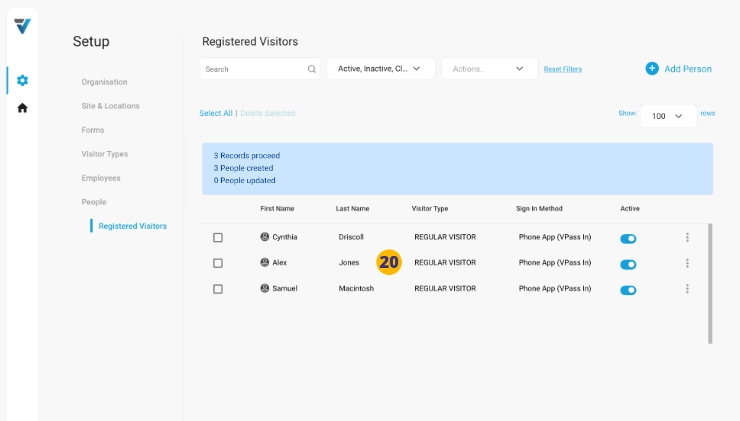
20. Your records will appear in the list page.
QR Code Poster Sign In & Out
Registered Visitors who have been setup for Phone Sign In, may scan a QR Code Poster to sign in and out.
Explanatory Video to assist Registered Visitors to do setup on their phones
V3-035